What's up with Office 2013's context menu and tooltip shadows?

Update (2015-04-22): Somewhat surprisingly, a recent Office 2013 patch appears to have fixed this issue.

Update (2015-03-04): Office 2016 fixes this.

Update (2014-10-03): Office 2013 running on the Windows 10 Technical Preview (build 9841) exhibits the same issue 🙁

At some point in the not-too-distant past, Office 2013 started rendering strange shadow artefacts in the four corners of all context menus and tooltips:
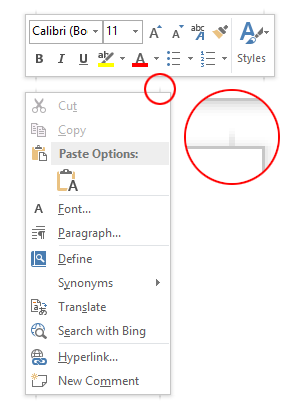
Screenshot of Word 2013 Context Menu Shadow Artefacts

This didn’t always happen, as a quick search for ‘Word 2013 screenshots’ will reveal lots of images of glitch-free floating windows. I’m too lazy to check, but I’ll hazard a guess that this started happening with Windows 8.1 or Windows 8.1 Update 1.

Being Office, they’ve re-implemented every GUI element themselves instead of letting the OS handle them. One can sympathise with this approach, but it’s important to get the little details right. A bit like how the IE team should finally spend the time to get their scrollbars right. Of course, it’s folly to ever expect UI consistency on Windows when even Microsoft can’t get it right.

A man can dream, though. A man can dream.

Enabling the compatibility property sheet for (almost) all programs in Windows 8/8.1

Windows 8 and 8.1 hide the compatibility property sheet for certain programs (namely programs included with Windows, like Notepad, and those on a whitelist of programs known to run correctly on Windows 8/8.1 – defined in %WinDir%\apppatch\pcamain.sdb). In some cases, one can still run the ‘troubleshoot compatibility’ wizard by right-clicking on the file, which just presents compatibility settings in a novice-friendly, poweruser-unfriendly way.

The compatibility property sheet and context menu are defined in acppage.dll. By patching this DLL, we can enable the compatibility property sheet for (almost) all programs, including programs like Notepad and those whitelisted in pcamain.sdb.

Patching Windows system DLL files is probably a bad idea, and I take no responsibility if your computer explodes after you take the following steps.

Continue reading “Enabling the compatibility property sheet for (almost) all programs in Windows 8/8.1”

Windows 8.1 impressions

Windows 8.1 is done, though Microsoft is apparently worried enough about driver and application support that not even loyal MSDN and TechNet subscribers will get it until October 17 this year. To no-one’s surprise, the RTM ISOs were promptly leaked, which leaves us in the odd situation where the only way to test your programs against the latest version of Windows is to download disc images from shady websites.

My impressions of Windows 8.1 don’t differ much from what I wrote earlier this year when it was still ‘Windows Blue’: no-one who hates Windows 8 is going to be swayed by Windows 8.1, but if you love Windows 8, you’ll probably love Windows 8.1.

Continue reading “Windows 8.1 impressions”

Warning: Simple Storage Spaces in Windows 8 can’t be dismantled

A new feature in Windows 8 is ‘storage spaces’, a kind of software RAID, similar to the drive extender functionality found in the defunct Windows Home Server. Unlike Windows Home Server, however, Windows 8 provides no means of removing hard drives from simple (no resiliency) storage spaces, even when there’s adequate free space. Deleting the storage space will remove all your data, so you’ll need to copy everything to other storage devices first. If all your hard drives are being used by the storage space, this can be tricky.

My home server has recently decided to reset itself at random intervals (no errors to speak of), possibly due to an incompatibility between some piece of hardware and Windows 8 (or possibly just a failing piece of hardware). I’d like to try re-installing Windows 8 to see if that helps, and try Windows 7 if it doesn’t, but first I need to find a way to transfer about 8 TB of data from my storage space.

Moral of the story: don’t use simple storage spaces if you ever plan to dismantle them.

Theme colours in Windows ‘Blue’

As I noted in my earlier post, the method for selecting theme (‘accent’) colours in Windows ‘Blue’ build 9364 has changed from Windows 8 RTM. I’m not going to bother looking too closely at the updates to the functions in UxTheme.dll this early in the development process, but I did notice two new registry values in the key HKCU\Software\Microsoft\Windows\CurrentVersion\Explorer\Accent: AccentColor and StartColor. These are DWORD values that store the accent colour and background colour, respectively. The format is 0xAABBGGRR. The old ColorSet_Version3 value from Windows 8 is gone for obvious reasons. AccentId_v8.00 from Windows 8 is now MotionAccentId_v1.00, but it seems to serve the same purpose – indicating which background image is selected.

Windows ‘Blue’ build 9364 observations

Update (2013-04-21): the thin borders are all gone in build 9374.

It looks like Microsoft isn’t changing tack with the next release of Windows – the recently leaked build 9364 of Windows ‘Blue’ contains a bunch of worthwhile changes to the Modern/Metro/Immersive environment, but the desktop seems to be basically untouched from Windows 8. If you hated Windows 8, you’ll probably hate Windows ‘Blue’. If you’re ambivalent, like me, about Windows 8, you’ll probably feel the same way about Windows ‘Blue’. I don’t think I’ve met anyone who loves Windows 8 outright, but that person will love Windows ‘Blue’.

Continue reading “Windows ‘Blue’ build 9364 observations”

Windows Update Notification Tool for Windows 8

I was apparently part of the 5.82% of Windows 7 users who preferred to be notified about updates rather than have them installed automatically. Annoyingly, Windows 8 no longer displays the familiar balloon tip and notify icon when new updates are available, instead placing a notice on the lock screen (which I almost never have occasion to see on my desktop). I found this frustrating enough that I decided to write a small unmanaged program to mimic the basic functionality of the old notify icon. It also supports automatic installation of specified updates (identified by their Knowledge Base ID – I use this to install Windows Defender definition updates). You can find out more and download the tool here:

Windows Update Notification Tool

Retrieving Windows 8 theme colours

See also: Windows 8 Theme Colours Reference.

Windows 8 doesn’t offer developers access to system theme colours, unlike its cousin, Windows Phone. Even for a version 1 product, this seems like a strange omission. Then again, we still don’t have a working public API for retrieving the Aero glass colour (or whatever we call it now that Aero’s gone) 6 years after the release of Windows Vista.

The functions that the system uses to retrieve colours are defined in UxTheme.dll. In particular, we’re interested in GetImmersiveColorSetCount (export #94), GetImmersiveColorFromColorSetEx (export #95), GetImmersiveColorTypeFromName (export #96), GetImmersiveUserColorSetPreference (export #98) and GetImmersiveColorNamedTypeByIndex (export #100). Relying on undocumented functions is a bad idea, and will cause your program to fail certification, so you won’t be able to use them in apps distributed through the Windows Store anyway.

For desktop developers who still want to use these functions, read on. Just assume that they’ll break in future versions of Windows (or even with patches to Windows 8).

Screenshot of Windows 8 Colours
Continue reading “Retrieving Windows 8 theme colours”

FastPictureViewer Codec Pack, Windows 8 and WPF don’t play nicely together

Update (2012-09-06): After some trial and error, it seems the Canon Hack Development Kit (CHDK) component is causing the issue. If you’re experiencing the same problem, try removing this component.

Update (2012-09-05): The FastPictureViewer support team was unable to reproduce the issue, but suggested it might have something to do with the JPEG Auto-Rotate feature. I was able to resolve the issue by installing only the following components of the codec pack: Photoshop PSD, Lightroom Previews, Adobe DNG, Canon CR2, CRW, PDF Thumbnails and Control Panel. This suggests one of the other components was causing the conflict on my machines.

I use the FastPictureViewer Codec Pack for viewing DNG images in Windows Explorer, amongst other things. Unfortunately, however, installing version 3.3.0.69 of the codec pack in Windows 8 (64-bit) caused my installations of Visual Studio 2010, Visual Studio 2012, Blend 4 and Blend for Visual Studio 2012 to stop working to various extents. Both versions of Blend crash silently. The start pages in both versions of Visual Studio fail to load, with VS2010 displaying a Content Load Error relating to System.Windows.Baml2006.TypeConverterMarkupExtension throwing an exception. The error message displayed where the Visual Studio 2012 Solution Explorer belongs was more useful: System.Runtime.InteropServices.COMException: The codec is in the wrong state. (Exception from HRESULT: 0x88982F04).

Continue reading “FastPictureViewer Codec Pack, Windows 8 and WPF don’t play nicely together”

Office 2013: Further evidence of the demise of ClearType?

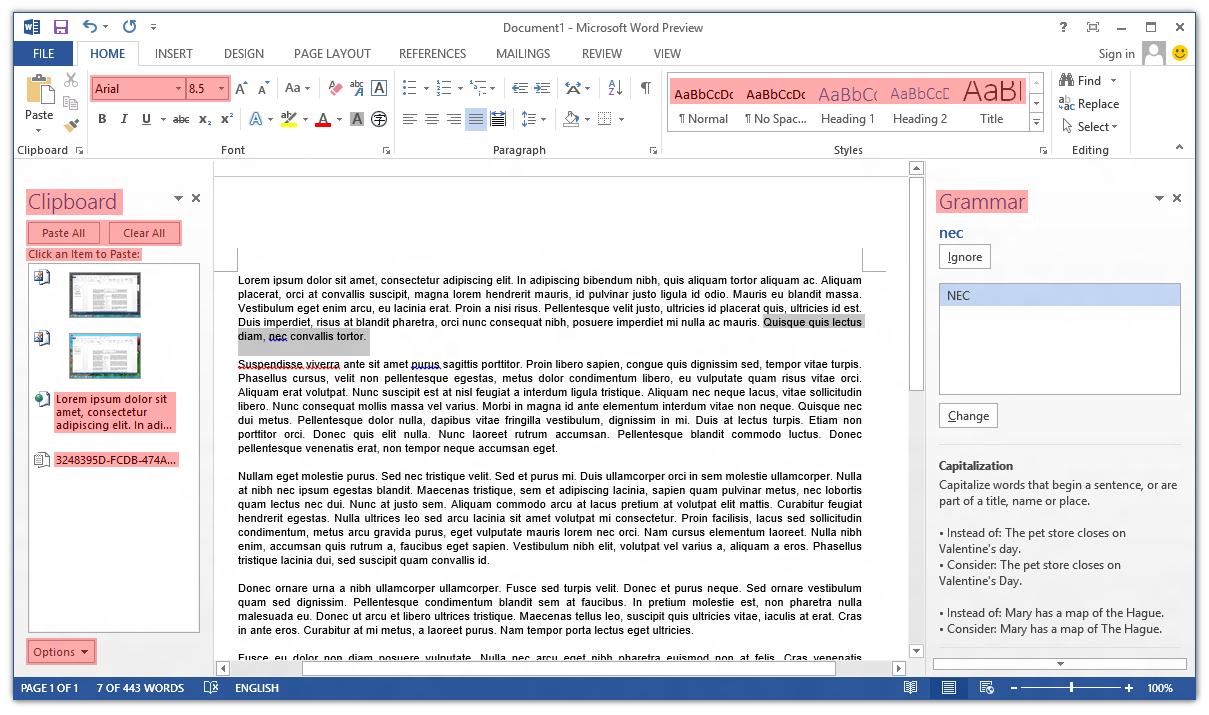
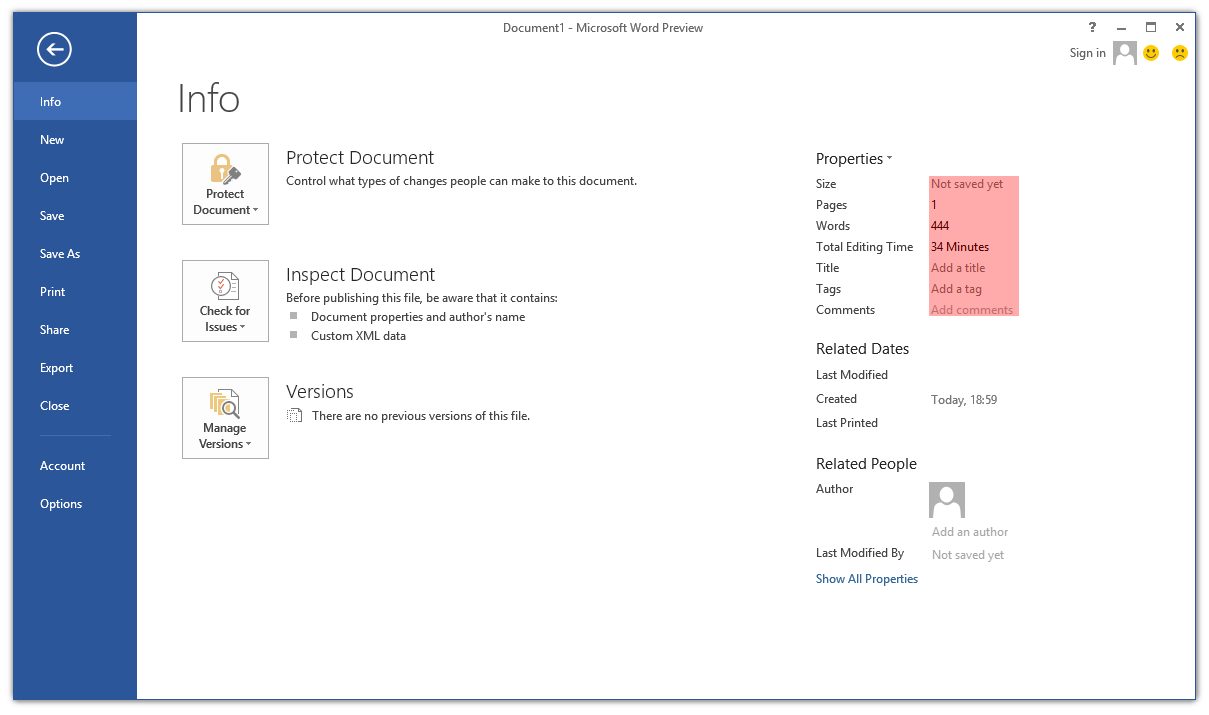
Poking around the Office 2013 Customer Preview, one thing that caught my eye immediately was the lack of ClearType font smoothing. Nearly all user interface elements use ‘greyscale’ font smoothing (as opposed to ClearType’s sub-pixel smoothing). I’ve highlighted the parts of Word 2013 that still use ClearType:

Screenshot of ClearType in Microsoft Word 2013

The text in cells in Excel 2013 still respects the system’s ClearType setting, and Outlook 2013 is a real mess (about half-and-half). OneNote 2013 seems to have retained ClearType in most places (outside the ribbon control).

Continue reading “Office 2013: Further evidence of the demise of ClearType?”