When visual styles are enabled in Windows, one may use the DrawThemeBackground function to draw themed push buttons. However, users of Windows XP, Windows Vista and Windows 7 can disable visual styles by selecting the Windows Classic theme or one of the High Contrast themes (and in Windows 2000 and earlier, visual styles weren’t available at all). The classic theming mode has been removed in Windows 8 (I have written about this previously), so in that OS the visual styles APIs should always be available. I suspect it will be a long time before NT6.1 and earlier versions of Windows constitute an insignificant share of the market, though, so this post should be useful until then.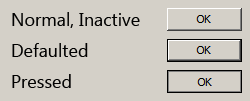
Tag: user32
Windows 7-style notification area applications in WPF: Part 6 (notify icon position: pre-Windows 7)
In Part 2 of this series I demonstrated how to use the Shell_NotifyIconGetRect function to find the position of a notify icon. This function is new to Windows 7, however, and we must find a different solution for earlier versions of Windows.
This turns out to be quite difficult. A post on the MSDN forums by user parisisinjail provided a good starting point, and it led me to a Code Project article by Irek Zielinski that explained exactly what to do – in native code. This post shows how to implement this kind of approach in managed code.
I have verified that the following code works with Windows XP and Vista. It also works under Windows 7, but only when the icon is not located in the notification area fly-out (not found in previous versions). As such, this solution should only be used when Shell_NotifyIconGetRect is not available.
The basic idea is that the notification area is actually just a special Toolbar control, with each icon being a toolbar button. We want to find the toolbar control and loop over the buttons until we find the one that corresponds to our notify icon. We can then find the coordinates of the toolbar button. (The fly-out in Windows 7 has a separate toolbar control, so you could search that instead of using Shell_NotifyIconGetRect if you really wanted to.)
The process sounds straight forward, but the implementation is quite tricky. Read on for the code.
Continue reading “Windows 7-style notification area applications in WPF: Part 6 (notify icon position: pre-Windows 7)”Windows 7-style Notification Area Applications in WPF: Part 4 (Multiple Monitors)
At the end of Part 3 in this series, I noted that the window positioning logic depends on accurately getting the bounds of the monitor where the notify icon is located. Specifically, we require the bounds of the working area (the space on the monitor excluding the taskbar and other docked items). WPF gives us the System.Windows.SystemParameters.WorkArea property, but this gives us the area of the primary display monitor’s working area, and the taskbar (and thus notify icon) might be located on a different monitor. Unfortunately, support for accessing information about anything other than the primary monitor with the SystemParameters class seems to be absent as of .NET 4.0.
We could use the System.Windows.Forms.Screen class to easily solve this problem: the System.Windows.Forms.Screen.GetWorkingArea method has an overload for finding the working area of the monitor that contains a given rectangle, which is exactly what we need to do. However, I am going to opt to use Win32, instead, simply to avoid depending on WinForms (yes, I realise that sounds a bit strange given that this project revolves around a System.Windows.Forms.NotifyIcon). In any case, there is something to be said for knowing what it is that all these .NET functions wrap around 🙂
The two functions we’ll use are MonitorFromRect (to find the handle of the monitor containing the notify icon) and GetMonitorInfo (to get the working area of that monitor).