JPEG XL is an outstanding format – much better compression ratios than JPEG or WebP, faster than AVIF, and a good lossless mode which generally beats PNG and WebP (unlike AVIF!). It also includes a magical method of losslessly compressing existing JPEGs, shrinking them on average 20% in a totally reversible manner. Happily, support for the format is picking up – decoding is enabled by default as of Chrome 155 and Firefox 158, and GNOME, KDE, macOS and Windows (the latter with the ‘JPEG XL Image Extension’) all handle it. Android is the outlier, but if we’re lucky we could see it included in Android 18 in 2027.
Immich gained support with version 3.4.0 in November 2026, and this was my signal to convert my decades of JPEGs. In general, this is as simple as running cjxl photo.jpg photo.jxl, but the process was more involved for HDR and ‘motion photos’.
I recently noticed some strange HTTP logs where a resource would be requested twice with two different User-Agent headers. In one case, the first request suggested the client was running Chrome on Windows, while the second request indicated that it was coming from Firefox on Linux. This didn’t make a lot of sense, so I did some digging.
The culprit turns out to be RealPlayer (and previously RealDownloader, a separate application that now seems to be abandoned). RealPlayer places an overlay over supported browsers (Internet Explorer, Firefox and Chrome and possibly others) that allows the user to save videos from web pages. It doesn’t seem to be a browser plugin as such – it runs in its own process and sends HTTP requests independently of the browser.
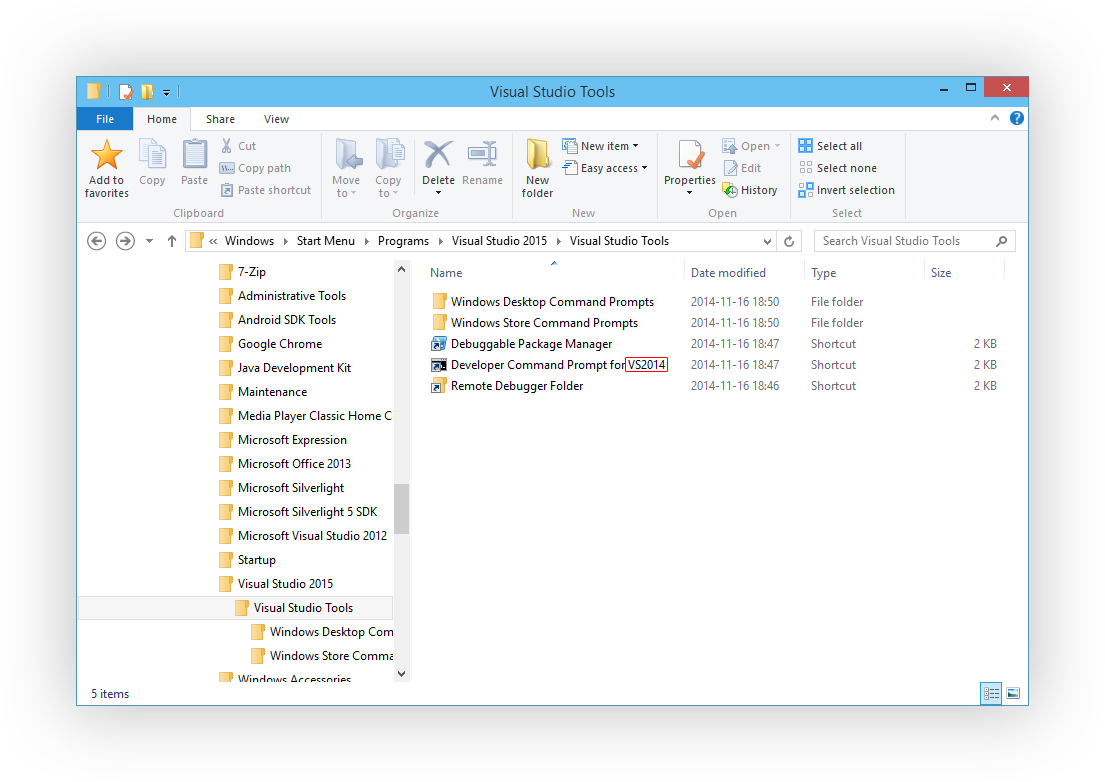
Visual Studio 2015 was apparently once going to be named Visual Studio 2014, based on some of the shortcuts installed with the recently released preview:
Continuing the Microsoft tradition of skipping version 13, the internal version number is 14 (Visual Studio 2013 being version 12).
Visual Studio 2013 configures Start Menu shortcuts differently to earlier versions. Specifically, it adds a shortcut to Visual Studio Tools (%PROGRAMFILES(X86)%\Microsoft Visual Studio 12.0\Common7\Tools\Shortcuts), where Visual Studio 2012 added a directory called Visual Studio Tools and added copies of the shortcuts. This is all a bit confusing, but the end result is that searching in the Start Menu/Screen won’t bring up results for useful things like the Developer Command Prompt or Spy++.
This annoyed me sufficiently that I wrote a PowerShell script (run it as administrator) to restore the shortcut directory:
$shortcutpath ="$env:ProgramData\Microsoft\Windows\Start Menu\Programs\Visual Studio 2013\Visual Studio Tools.lnk"$newshortcutdir ="$env:ProgramData\Microsoft\Windows\Start Menu\Programs\Visual Studio 2013\Visual Studio Tools"If (Test-Path $shortcutpath) { $shell =New-Object-COM WScript.Shell $toolsdir = $shell.CreateShortcut($shortcutpath).TargetPath# create directory if necessaryIf (-Not(Test-Path $newshortcutdir)) { mkdir $newshortcutdir }# copy shortcut files copy "$toolsdir\*.lnk" $newshortcutdir# hide old shortcut $shortcut =Get-Item $shortcutpath -Force $shortcut.Attributes = $shortcut.Attributes -bor [System.IO.FileAttributes]::Hidden} else {"Shortcut not found."}
The Visual Studio Shortcuts directory doesn’t contain shortcuts to Spy++ (and a number of other programs). Here’s another script to restore shortcuts to Spy++:
$shortcutdir ="$env:ProgramData\Microsoft\Windows\Start Menu\Programs\Visual Studio 2013\Visual Studio Tools"$toolsdir ="${env:ProgramFiles(x86)}\Microsoft Visual Studio 12.0\Common7\Tools"$shell =New-Object-COM WScript.Shell$spyshortcut = $shell.CreateShortcut("$shortcutdir\Spy++.lnk")$spyshortcut.TargetPath ="$toolsdirspyxx.exe"$spyshortcut.Save();$spyshortcut = $shell.CreateShortcut("$shortcutdir\Spy++ (64-bit).lnk")$spyshortcut.TargetPath ="$toolsdirspyxx_amd64.exe"$spyshortcut.Save();
ResEdit is a nice resource file editor for Windows programs. Regrettably, it has some issues with the latest versions of the Windows SDK (8.0 and 8.1) – it’s possible to create a resource script (.rc) file, but you won’t be able to open it again later. Even if %PROGRAMFILES(x86)%\Windows Kits\8.1\Include is set as include path, symbols like VOS_NT_WINDOWS32 (defined in verrsrc.h) won’t be resolved and you’ll get ‘undeclared identifier’ errors if your resource script contains them.
Use an earlier version of the Windows SDK (like 7.1) and ResEdit has no problem reading the header files.
For reference, I’m successfully using the following include paths: %PROGRAMFILES(x86)%\Microsoft SDKs\Windowsv7.1A\Include %PROGRAMFILES(x86)%\Microsoft Visual Studio 12.0\VC\include
I recently migrated a project from ASP.NET MVC 4 to MVC 5 and the process went quite smoothly, except that all of a sudden my webpages were being returned with the X-Frame-Options header set with the value SAMEORIGIN. This is actually a reasonable default as it helps mitigate the risk of ClickJacking. The website in question, however, is designed to run in an iFrame, and this header immediately caused issues.
After a fruitless search of all my code in Visual Studio for X-Frame-Options and SAMEORIGIN, I decided to try Windows Grep as a last resort, and it found that SAMEORIGIN was present in System.Web.WebPages.dll. Thanks to Microsoft making ASP.NET MVC open source, I was able to find the relevant code quite easily on GitHub; it turns out that the AntiForgeryWorker class adds the header when you call Html.AntiForgeryToken() as of August this year. Even better, there’s an easy way to prevent this behaviour: set the static property AntiForgeryConfig.SuppressXFrameOptionsHeader to true (I’ve done this in my Application_Start() method). MSDN doesn’t didn’t even document this property yet, so I’m lucky to have found it. Two other bloggers have written about this in English and Japanese.
Windows 8 and 8.1 hide the compatibility property sheet for certain programs (namely programs included with Windows, like Notepad, and those on a whitelist of programs known to run correctly on Windows 8/8.1 – defined in %WinDir%\apppatch\pcamain.sdb). In some cases, one can still run the ‘troubleshoot compatibility’ wizard by right-clicking on the file, which just presents compatibility settings in a novice-friendly, poweruser-unfriendly way.
The compatibility property sheet and context menu are defined in acppage.dll. By patching this DLL, we can enable the compatibility property sheet for (almost) all programs, including programs like Notepad and those whitelisted in pcamain.sdb.
Patching Windows system DLL files is probably a bad idea, and I take no responsibility if your computer explodes after you take the following steps.
Using Google Analytics in a Windows Phone 7+ app is really simple. There’s a small hurdle, however, in that Google Analytics doesn’t support Windows Phone, and if your property is configured as an ‘App’, you won’t be able to track any data. The solution is to configure your property as a ‘Web Site’ when you create it. You’ll miss out on niceties like screen tracking, but it’s possible to use events to record similar data.
While the ContextMenucontrol in the Windows Phone Toolkit has a Foreground property, setting it has no effect, as it’s not used in the default control template (unlike the Background and BorderBrush properties, which work as expected). To change the text colour in a ContextMenu, set the Foreground property of MenuItems individually.