Theming & visual styles in Windows 8

The following is based on the Windows Developer Preview and might not accurately represent the final version of Windows 8.

A significant change in Windows 8 is the removal of support for Windows classic theming. In the Windows Developer Preview, there is no Windows Classic theme, and all themes (including Windows Basic and the four high contrast themes) use the Desktop Window Manager (DWM) for desktop composition (in Windows Vista and Windows 7, it was only enabled for Aero themes).

Continue reading “Theming & visual styles in Windows 8”

Windows theme fonts redux & sample code

View source on GitHub.

In a post earlier this year, I investigated how to retrieve information about theme fonts in Windows. Briefly, the Visual Styles APIs can be used when visual styles are enabled, but values need to be hard-coded (to some extent) otherwise.

Andrew Powell commented on my previous post noting difficulties in implementing the GetThemeFont function in managed code. In this post, I’ll demonstrate how to implement the relevant functions in a simple WPF project. In particular, I’ll focus on displaying information about the ‘main instruction’ text style as seen in Task Dialogs.

Read on for details.

Continue reading “Windows theme fonts redux & sample code”

Windows theme fonts

View source on GitHub.

Update: See this post for a sample implementation in WPF.

Screenshot of Task Dialog (Aero)

Have you ever wondered how to access the various font colours and styles found throughout Windows, such as that of the ‘Main Instruction’ text in the Task Dialog shown above?

Continue reading “Windows theme fonts”

SetDPI utility

View source on GitHub.

Updated 2013-01-06.

Ken Silverman’s PNG compression tool PNGOUT (complemented nicely by the free .NET frontend PNGGauntlet) can be remarkably effective at trimming the size of PNGs without altering the image described within.

However, in its quest to remove anything non-essential, PNGOUT by default strips out the image’s DPI (in fact PPI) information. PNGs without PPI information will be treated differently by different software.

Continue reading “SetDPI utility”

Pixel measurements in WPF

Part of the beauty of the Windows Presentation Foundation is that it is designed to be resolution independent – that is, a WPF application should scale perfectly no matter the system’s DPI setting (excluding any bitmap graphics, which mightn’t look as nice as the vector parts).

Continue reading “Pixel measurements in WPF”

Small icon size & DPI in Windows

The GetSystemMetrics function in Windows retrieves system metrics and configuration settings. One such metric is the recommended size (width and height) of ‘small icons’:

Small icons typically appear in window captions and in small icon view.

Another place where small icons show up is the notification area.

MSDN contains a guide to Creating DPI-Aware Applications. It notes the challenge posed by raster graphics and different DPIs. Unlike vector graphics, which can scale without a loss in quality, distinct raster images must be created for different resolutions in order to avoid unpleasant scaling artefacts. (In fact, this is perhaps overstating the benefits of vector graphics: the level of detail suitable for a high-resolution image is not necessarily suitable for a low-resolution image, so using the same vector for all sizes doesn’t always make sense.) Windows icons, as of Windows 7, contain only raster graphics.

Continue reading “Small icon size & DPI in Windows”

Windows 7-style notification area applications in WPF: Recap & sample

View source on GitHub.

Over the past month I’ve looked at how to implement a Windows 7-style notification area application in WPF.

I covered 6 different topics:

As promised, I’ve put together a small sample project to illustrate all this code working together (with some added polish):

NotifyIconSample.7z
42,775 bytes; SHA-1: 513E998F4CCFC8C5BB6CA9F8001DA204C80FDF3A

The code has a good level of documentation, but I recommend you read the above posts to understand the ideas behind it.

Windows 7-style notification area applications in WPF: Part 6 (notify icon position: pre-Windows 7)

View source on GitHub.

In Part 2 of this series I demonstrated how to use the Shell_NotifyIconGetRect function to find the position of a notify icon. This function is new to Windows 7, however, and we must find a different solution for earlier versions of Windows.

This turns out to be quite difficult. A post on the MSDN forums by user parisisinjail provided a good starting point, and it led me to a Code Project article by Irek Zielinski that explained exactly what to do – in native code. This post shows how to implement this kind of approach in managed code.

I have verified that the following code works with Windows XP and Vista. It also works under Windows 7, but only when the icon is not located in the notification area fly-out (not found in previous versions). As such, this solution should only be used when Shell_NotifyIconGetRect is not available.

The basic idea is that the notification area is actually just a special Toolbar control, with each icon being a toolbar button. We want to find the toolbar control and loop over the buttons until we find the one that corresponds to our notify icon. We can then find the coordinates of the toolbar button. (The fly-out in Windows 7 has a separate toolbar control, so you could search that instead of using Shell_NotifyIconGetRect if you really wanted to.)

The process sounds straight forward, but the implementation is quite tricky. Read on for the code.

Continue reading “Windows 7-style notification area applications in WPF: Part 6 (notify icon position: pre-Windows 7)”
Windows 7-style notification area applications in WPF: Part 5 (fixing Aero borders)

View source on GitHub.

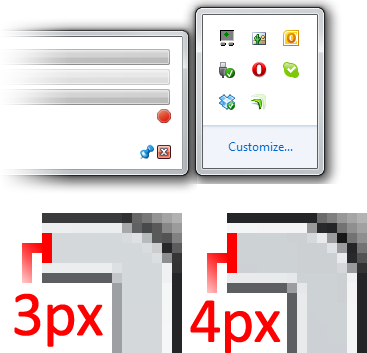
An issue that came to my attention only recently is that the borders of WPF (update: WPF is not actually to blame) windows without captions/title-bars (that is, with ResizeMode set to CanResize and WindowStyle set to None) are drawn incorrectly when the DWM (read: Aero Glass) is enabled. Specifically, the upper and left borders are drawn one pixel too thin (e.g. 3 pixels when the system setting is 4 pixels) and the colour of the bottom and right borders is different to that of other windows. I’ve tried to illustrate these differences in the screenshot below (the image on the left is of a WPF window).

Aero Border Example

It is conceivable that this will be fixed in a future version of WPF Windows, but for now we can use the DwmExtendFrameIntoClientArea function to do it manually. This is only necessary when the DWM is enabled, of course.

Continue reading “Windows 7-style notification area applications in WPF: Part 5 (fixing Aero borders)”

Windows 7-style Notification Area Applications in WPF: Part 4 (Multiple Monitors)

View source on GitHub.

At the end of Part 3 in this series, I noted that the window positioning logic depends on accurately getting the bounds of the monitor where the notify icon is located. Specifically, we require the bounds of the working area (the space on the monitor excluding the taskbar and other docked items). WPF gives us the System.Windows.SystemParameters.WorkArea property, but this gives us the area of the primary display monitor’s working area, and the taskbar (and thus notify icon) might be located on a different monitor. Unfortunately, support for accessing information about anything other than the primary monitor with the SystemParameters class seems to be absent as of .NET 4.0.

We could use the System.Windows.Forms.Screen class to easily solve this problem: the System.Windows.Forms.Screen.GetWorkingArea method has an overload for finding the working area of the monitor that contains a given rectangle, which is exactly what we need to do. However, I am going to opt to use Win32, instead, simply to avoid depending on WinForms (yes, I realise that sounds a bit strange given that this project revolves around a System.Windows.Forms.NotifyIcon). In any case, there is something to be said for knowing what it is that all these .NET functions wrap around 🙂

The two functions we’ll use are MonitorFromRect (to find the handle of the monitor containing the notify icon) and GetMonitorInfo (to get the working area of that monitor).

Continue reading “Windows 7-style Notification Area Applications in WPF: Part 4 (Multiple Monitors)”