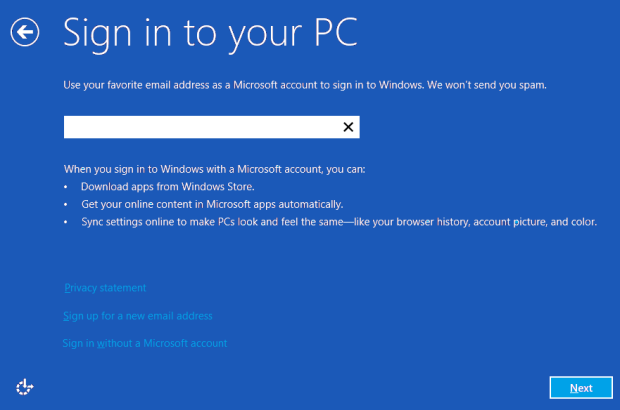
In Windows 8, users were strongly encouraged to use a Microsoft account to sign in to their computers. For those of us who preferred local accounts, the option to ‘sign in without a Microsoft account’ was presented in faint text at the bottom of the screen.
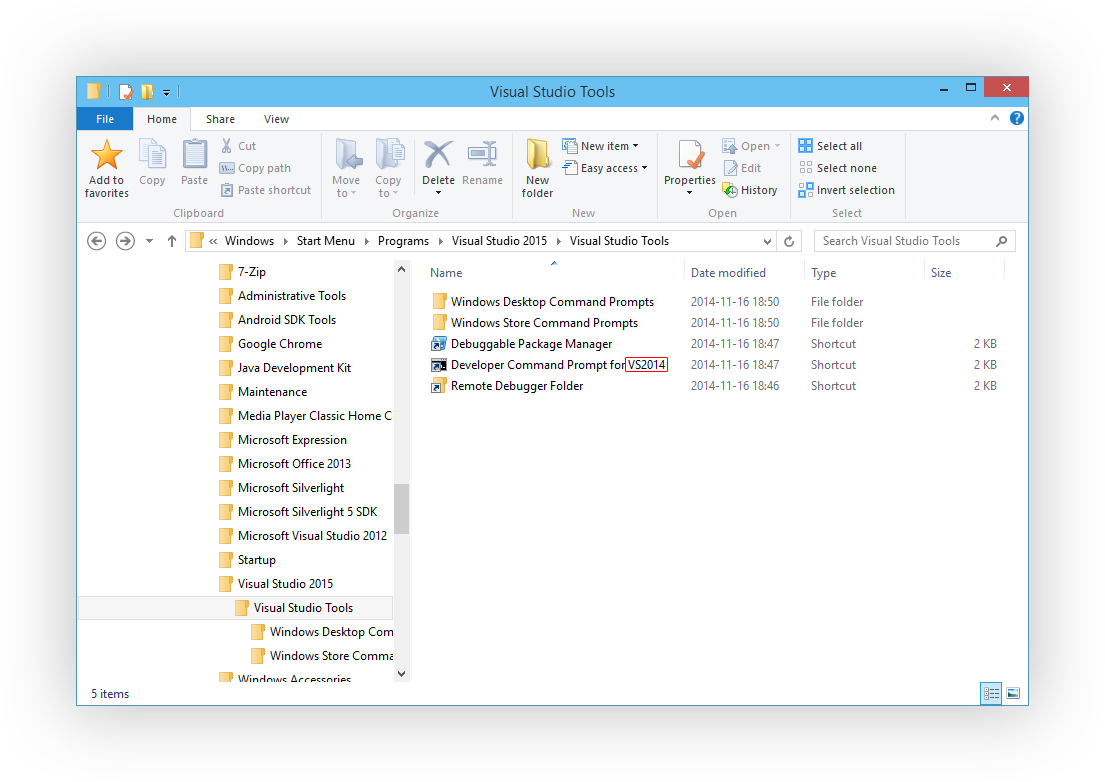
Visual Studio 2015 was apparently once going to be named Visual Studio 2014, based on some of the shortcuts installed with the recently released preview:
Continuing the Microsoft tradition of skipping version 13, the internal version number is 14 (Visual Studio 2013 being version 12).
My Hyper-V virtual machine running the Windows 10 Technical Preview kept displaying the error code 0xC190010C when I attempted to update to the latest build (from 9841 to 9860).
I was able to resolve this issue by clearing the Windows Update cache as described here. Briefly:
net stop wuauserv rmdir /s %WinDir%\SoftwareDistribution net start wuauserv
Update (2015-04-22): Somewhat surprisingly, a recent Office 2013 patch appears to have fixed this issue.
Update (2015-03-04): Office 2016 fixes this.
Update (2014-10-03): Office 2013 running on the Windows 10 Technical Preview (build 9841) exhibits the same issue 🙁
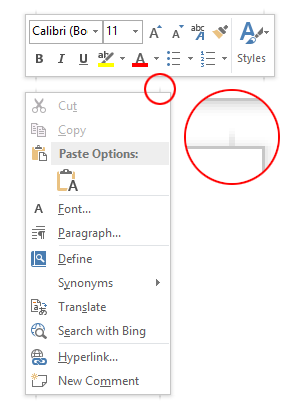
At some point in the not-too-distant past, Office 2013 started rendering strange shadow artefacts in the four corners of all context menus and tooltips:
This didn’t always happen, as a quick search for ‘Word 2013 screenshots’ will reveal lots of images of glitch-free floating windows. I’m too lazy to check, but I’ll hazard a guess that this started happening with Windows 8.1 or Windows 8.1 Update 1.
Being Office, they’ve re-implemented every GUI element themselves instead of letting the OS handle them. One can sympathise with this approach, but it’s important to get the little details right. A bit like how the IE team should finally spend the time to get their scrollbars right. Of course, it’s folly to ever expect UI consistency on Windows when even Microsoft can’t get it right.
Visual Studio 2013 configures Start Menu shortcuts differently to earlier versions. Specifically, it adds a shortcut to Visual Studio Tools (%PROGRAMFILES(X86)%\Microsoft Visual Studio 12.0\Common7\Tools\Shortcuts), where Visual Studio 2012 added a directory called Visual Studio Tools and added copies of the shortcuts. This is all a bit confusing, but the end result is that searching in the Start Menu/Screen won’t bring up results for useful things like the Developer Command Prompt or Spy++.
This annoyed me sufficiently that I wrote a PowerShell script (run it as administrator) to restore the shortcut directory:
$shortcutpath ="$env:ProgramData\Microsoft\Windows\Start Menu\Programs\Visual Studio 2013\Visual Studio Tools.lnk"$newshortcutdir ="$env:ProgramData\Microsoft\Windows\Start Menu\Programs\Visual Studio 2013\Visual Studio Tools"If (Test-Path $shortcutpath) { $shell =New-Object-COM WScript.Shell $toolsdir = $shell.CreateShortcut($shortcutpath).TargetPath# create directory if necessaryIf (-Not(Test-Path $newshortcutdir)) { mkdir $newshortcutdir }# copy shortcut files copy "$toolsdir\*.lnk" $newshortcutdir# hide old shortcut $shortcut =Get-Item $shortcutpath -Force $shortcut.Attributes = $shortcut.Attributes -bor [System.IO.FileAttributes]::Hidden} else {"Shortcut not found."}
The Visual Studio Shortcuts directory doesn’t contain shortcuts to Spy++ (and a number of other programs). Here’s another script to restore shortcuts to Spy++:
$shortcutdir ="$env:ProgramData\Microsoft\Windows\Start Menu\Programs\Visual Studio 2013\Visual Studio Tools"$toolsdir ="${env:ProgramFiles(x86)}\Microsoft Visual Studio 12.0\Common7\Tools"$shell =New-Object-COM WScript.Shell$spyshortcut = $shell.CreateShortcut("$shortcutdir\Spy++.lnk")$spyshortcut.TargetPath ="$toolsdirspyxx.exe"$spyshortcut.Save();$spyshortcut = $shell.CreateShortcut("$shortcutdir\Spy++ (64-bit).lnk")$spyshortcut.TargetPath ="$toolsdirspyxx_amd64.exe"$spyshortcut.Save();
ResEdit is a nice resource file editor for Windows programs. Regrettably, it has some issues with the latest versions of the Windows SDK (8.0 and 8.1) – it’s possible to create a resource script (.rc) file, but you won’t be able to open it again later. Even if %PROGRAMFILES(x86)%\Windows Kits\8.1\Include is set as include path, symbols like VOS_NT_WINDOWS32 (defined in verrsrc.h) won’t be resolved and you’ll get ‘undeclared identifier’ errors if your resource script contains them.
Use an earlier version of the Windows SDK (like 7.1) and ResEdit has no problem reading the header files.
For reference, I’m successfully using the following include paths: %PROGRAMFILES(x86)%\Microsoft SDKs\Windowsv7.1A\Include %PROGRAMFILES(x86)%\Microsoft Visual Studio 12.0\VC\include
I recently migrated a project from ASP.NET MVC 4 to MVC 5 and the process went quite smoothly, except that all of a sudden my webpages were being returned with the X-Frame-Options header set with the value SAMEORIGIN. This is actually a reasonable default as it helps mitigate the risk of ClickJacking. The website in question, however, is designed to run in an iFrame, and this header immediately caused issues.
After a fruitless search of all my code in Visual Studio for X-Frame-Options and SAMEORIGIN, I decided to try Windows Grep as a last resort, and it found that SAMEORIGIN was present in System.Web.WebPages.dll. Thanks to Microsoft making ASP.NET MVC open source, I was able to find the relevant code quite easily on GitHub; it turns out that the AntiForgeryWorker class adds the header when you call Html.AntiForgeryToken() as of August this year. Even better, there’s an easy way to prevent this behaviour: set the static property AntiForgeryConfig.SuppressXFrameOptionsHeader to true (I’ve done this in my Application_Start() method). MSDN doesn’t didn’t even document this property yet, so I’m lucky to have found it. Two other bloggers have written about this in English and Japanese.
Windows 8 and 8.1 hide the compatibility property sheet for certain programs (namely programs included with Windows, like Notepad, and those on a whitelist of programs known to run correctly on Windows 8/8.1 – defined in %WinDir%\apppatch\pcamain.sdb). In some cases, one can still run the ‘troubleshoot compatibility’ wizard by right-clicking on the file, which just presents compatibility settings in a novice-friendly, poweruser-unfriendly way.
The compatibility property sheet and context menu are defined in acppage.dll. By patching this DLL, we can enable the compatibility property sheet for (almost) all programs, including programs like Notepad and those whitelisted in pcamain.sdb.
Patching Windows system DLL files is probably a bad idea, and I take no responsibility if your computer explodes after you take the following steps.
Windows 8.1 is done, though Microsoft is apparently worried enough about driver and application support that not even loyal MSDN and TechNet subscribers will get it until October 17 this year. To no-one’s surprise, the RTM ISOs were promptly leaked, which leaves us in the odd situation where the only way to test your programs against the latest version of Windows is to download disc images from shady websites.